SSD vs. HDD: Which Storage Is Right for You?
Confused between SSD and HDD? Compare speed, durability, noise, power, capacity, and cost to choose the right drive for your PC, laptop, or console.
What Sets Them Apart — The core difference between a solid-state drive (SSD) and a hard disk drive (HDD) is how they store and retrieve data. An SSD uses flash memory chips controlled by a sophisticated controller that manages tasks like wear leveling and error correction, allowing data to be accessed electronically with no moving parts. This design brings faster access, silent operation, and better shock resistance. An HDD, by contrast, stores data magnetically on spinning platters and uses a read/write head that moves to the correct location, making mechanical movement central to performance and durability. You'll find SSDs in compact M.2 and 2.5-inch forms, while HDDs commonly appear in 3.5-inch and 2.5-inch sizes. In everyday computing, this architectural divide translates into different strengths: SSDs excel in speed and responsiveness, while HDDs shine in high-capacity, cost-effective bulk storage. Understanding how each works helps set realistic expectations for performance, longevity, and total cost of ownership.
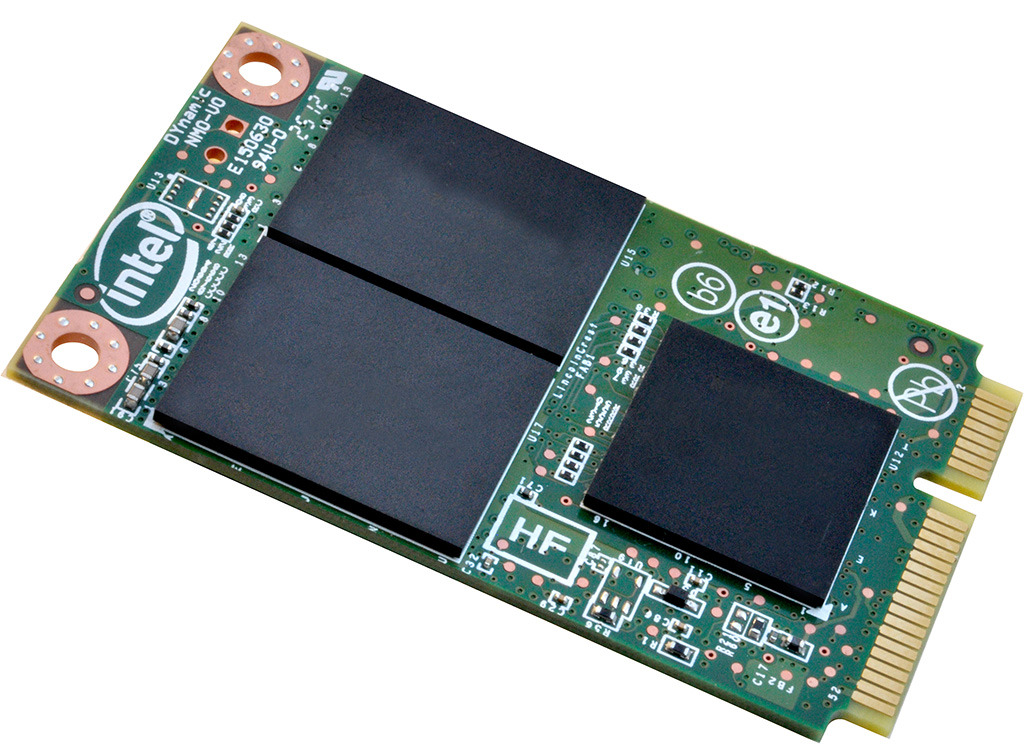
Speed and Responsiveness — If performance is your priority, latency and input/output operations per second (IOPS) matter as much as raw throughput. SSDs deliver near-instant access because they read data directly from memory cells, minimizing seek times and dramatically improving random read/write performance. This pays off when launching apps, booting your operating system, loading game levels, or switching between multiple tasks. NVMe SSDs connected over PCIe push responsiveness even further, while SATA SSDs still offer a substantial leap over HDDs. HDDs can perform adequately on sequential tasks like large media transfers but slow down with fragmented files and many small reads. For creators working with project files, developers compiling code, or professionals juggling virtual machines, the SSD's low-latency behavior reduces waiting and interrupts, keeping workflows fluid. Even modest-capacity SSDs can transform an older system's feel, especially when used for the OS and frequently accessed applications.
Capacity and Cost — When your priority is maximum space for the least money, HDDs remain the go-to for cost per gigabyte. They scale well for vast media libraries, long-term archives, and backup sets, offering ample room without breaking the budget. SSDs, while dropping in price over time, still command a premium at higher capacities; the value proposition is strongest when used for speed-critical data such as the operating system, active projects, and frequently played games. A common strategy is to pair a smaller SSD for performance with a larger HDD for bulk storage, balancing quick access and capacity. Consider how often you access your files: if you stream from local media or manage large RAW photos and 4K edits, a spacious HDD makes sense; if you're often working on current tasks, a fast SSD improves day-to-day flow. Think beyond initial purchase: factor in upgrade paths, drive bays, available M.2 slots, and data growth over the device's lifespan.
Reliability, Noise, and Power — The absence of moving parts makes SSDs more resistant to shocks, vibrations, and drops, ideal for laptops, portable drives, and tight workspaces. Their failure modes often relate to write endurance and controller issues, typically measured via concepts like TBW (terabytes written) and managed with wear-leveling algorithms. HDDs can run for many years, but mechanical components introduce risks from impacts, bearing wear, or head crashes. For acoustic comfort, SSDs are silent; HDDs generate audible spin and seek noises and may introduce vibration that benefits from good mounting. Power draw also differs: SSDs usually consume less energy, improving battery life and reducing heat in compact systems. HDDs, especially in multi-drive setups, require more power and cooling considerations. Monitoring tools such as SMART data help anticipate issues on both types, but no device is fail-proof. The best reliability strategy remains regular backups, smart usage, and choosing reputable models for mission-critical tasks.
Choosing the Right Mix — Start by mapping your workload: Are you a gamer chasing faster load times, a creator editing large media, a frequent traveler who needs durability, or a home archivist storing years of photos and videos? For snappy everyday use, an SSD for your OS and apps is the single most noticeable upgrade. For massive libraries and backups, add a high-capacity HDD. If you rely on many small files, databases, or virtual machines, favor NVMe SSDs; for predominantly large, sequential transfers, HDDs still provide excellent value. Consider form factors and connectors, available drive bays, airflow, and power supply headroom. External options can extend flexibility: a portable SSD for on-the-go projects and a desktop HDD for archives. Plan a backup strategy that includes multiple copies and periodic tests, and use encryption for sensitive data. The right answer is rarely either-or; a thoughtful hybrid setup often delivers the best blend of speed, capacity, and budget.