Protect Your Data: Simple Backup Strategies for Every Device
Keep your files safe with simple, device-specific backups: phones, laptops, and tablets. Learn the 3-2-1 rule, cloud sync, and automated restore checks.
Backups 101: Why It Matters Across Devices — Your photos, chats, documents, and game saves live across a growing mix of computers and consumer electronics, and any one of them can fail without warning. A simple spill, a lost phone, a corrupted card, or malware can erase years of memories and work in seconds. The antidote is a clear, repeatable plan anchored by the 3-2-1 rule: keep three copies of your data, on two different types of media, with one copy off-site. Pair this with automation so backups run even when you forget, and versioning so you can roll back after accidental edits or ransomware. Organize important folders—documents, media, projects—so they're consistently included. Label drives and keep a minimal inventory of what is protected and where. Prioritize what truly matters, then expand coverage. Most importantly, treat restoring as a routine skill, not a last‑minute scramble; a backup isn't successful until a restore actually works.
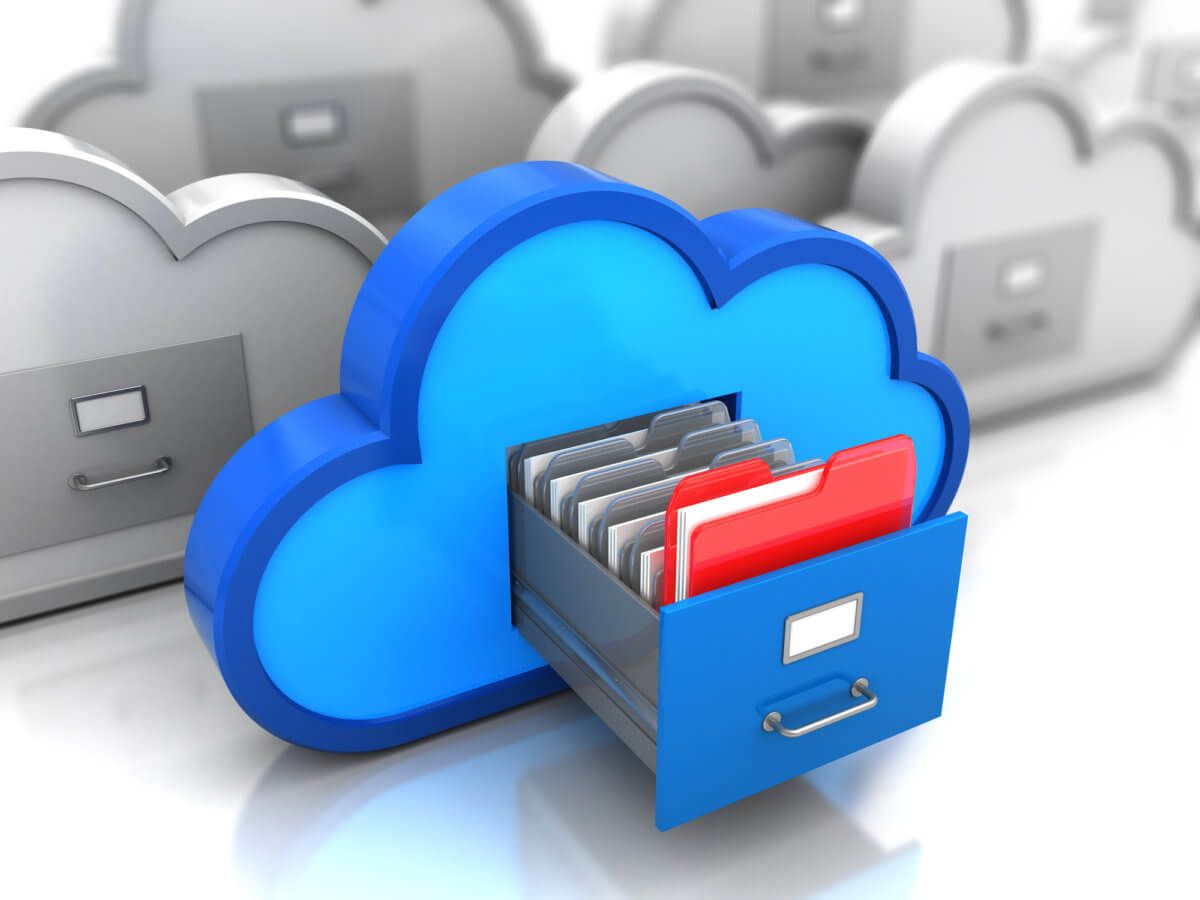
Mobile Devices: Set‑and‑Forget Protection — Phones and tablets capture life's highlights and critical credentials, making automatic backups essential. Enable your platform's native backup for photos, messages, and app data, and confirm it runs over Wi‑Fi and while charging to avoid interruptions. For extra resilience, export full‑resolution photos and videos to a computer or external drive on a schedule, and consider a privacy‑minded cloud library with end‑to‑end encryption for sensitive albums. Use encrypted local backups for devices that store authentication apps, health data, or work files, and protect them with a strong passcode. If you switch phones, test a partial restore—retrieve a few photos or chats—to verify that credentials and media transfer cleanly. Remember removable storage in cameras or drones; copy cards to two destinations before reformatting. Keep a small checklist: backup on, last successful time, storage available, and encryption enabled. When it's simple and automatic, you're far less likely to skip it.
Computers: Layered Backups Without the Fuss — Laptops and desktops benefit from a layered approach: a continuously connected external drive for fast, incremental copies; a network‑attached storage (NAS) or shared home server for central archives; and a cloud backup for true off‑site resilience. Start with folders that change daily—documents, project directories, downloads you intend to keep—then add system images so you can recover quickly from drive failure. Schedule backups to run frequently, throttle them when on battery, and exclude caches or virtual machine scratch files to save space. Turn on encryption at rest for backup destinations and set a unique passphrase separate from your device login. Use version history to undo mistakes and tag milestone snapshots before major updates. Keep one air‑gapped copy that you plug in only for backups, protecting against ransomware. Document your restore path: where installers live, license keys, and which folders to restore first so you can return to work fast.
External Drives, NAS, and Home Servers: Do It Right — Hardware adds speed and control, but it needs thoughtful maintenance. Rotate two or more external drives—one nearby for quick restores, another stored off‑site or in a safe location—to satisfy the 3‑2‑1 rule. If you use a NAS, remember RAID is not a backup; it improves availability, not historical recovery. Enable snapshots, versioning, and replication to another device or to the cloud. Monitor SMART health indicators, run periodic file‑system checks, and replace aging drives proactively. Protect equipment with a UPS to avoid corruption during power events. Label cables and ports, and keep a short runbook: backup schedules, retention periods, admin credentials, and the steps to mount or export shares. Test restoring a large folder to a temporary location to validate throughput and integrity. Consider immutable or write‑once options that block deletion for a set period, providing a safety net against accidental or malicious changes.
Cloud Backup Done Right: Security, Speed, and Control — Cloud backup adds convenience and off‑site protection, but only when configured carefully. Prioritize end‑to‑end encryption or at least encryption at rest and in transit, and hold your own encryption key whenever possible. Look for robust version history, file‑type support, and controls for bandwidth, scheduling, and CPU usage. Understand retention policies so long‑deleted files don't disappear before you notice. Test both small and large restore jobs, and note actual speeds; plan around bandwidth caps. Separate sync from backup—sync mirrors mistakes fast, while backup preserves history. If you keep sensitive media or work files, consider a second cloud provider or a hybrid with your NAS for vendor diversity. Organize backups by device and role, tag critical folders, and verify that mobile, desktop, and camera data funnel into at least one immutable or off‑site destination. Document recovery steps in plain language for future you.
Practice Restores and Build a Recovery Mindset — A great backup strategy ends with confident restores. Schedule short restore drills: retrieve last week's spreadsheet, last month's photo set, and a full user profile to confirm apps and settings return intact. Use checksums or built‑in validation to catch silent corruption. Review logs and enable alerts so you know when a job fails. Tidy your structure with clear naming conventions and a minimal inventory of devices, drives, and cloud buckets. Extend protection beyond computers: export console saves, smart‑home hub configurations, and camera presets; store them with your documents. Reduce risk with least‑privilege accounts and keep one air‑gapped copy offline. When replacing hardware, migrate first, then wipe after verification. Finally, write a one‑page recovery plan: where backups live, how to decrypt them, what to restore first, and who can help. Preparation turns a stressful incident into a manageable checklist.